Download XM MT4, MT5, WebTrader & XM App

XM supports MetaTrader 4, MetaTrader 5, WebTrader and XM App across desktop, browser and mobile devices. Start by confirming whether your trading account is MT4 or MT5, then choose the terminal for Windows, macOS, iOS, Android or web access. MT4 and MT5 use separate account environments, servers and automation ecosystems.

Choose the XM Platform That Matches Your Trading Account

An XM trading account is tied to a specific platform environment. Existing MT4 accounts should use MT4 terminals and MT5 accounts should use MT5 terminals; desktop, WebTrader and mobile apps simply provide different ways to access that account.

XM MT4 / MT5 WebTrader

XM WebTrader lets you access a compatible MetaTrader account directly in a browser without installing desktop software. MT4 and MT5 have separate WebTrader environments, so the account platform and server still need to match.

  • View market quotes, charts, positions and supported order functions directly in the browser
  • Use XM MT4 WebTrader for MT4 accounts and XM MT5 WebTrader for MT5 accounts
  • Expert Advisors, MetaEditor and Strategy Tester workflows remain primarily desktop-based

XM App

XM App is XM’s own mobile application and is separate from the MetaTrader 4 and MetaTrader 5 mobile apps. It is designed for supported XM account and mobile services, while MetaTrader apps connect to their respective MT4 or MT5 environments.

  • Access supported XM account services and mobile functions from iOS or Android
  • Use the corresponding MetaTrader mobile app when you need direct MT4 or MT5 account access
  • For MQL, Expert Advisors, MetaEditor and strategy testing, use the matching desktop MetaTrader terminal

XM MT4 / MT5 for Windows and macOS

XM MT4 and MT5 desktop terminals provide the full MetaTrader workspace for charting, order management, Expert Advisors and strategy development. MT4 uses MQL4, while MT5 uses MQL5 and its own broader analytical and multi-asset toolset.

  • MT4: MQL4, Expert Advisors, technical indicators and charting tools
  • MT5: MQL5, Expert Advisors, expanded analytical tools and multi-asset functionality
  • Log in with the XM trading account ID, trading password and server assigned to that platform
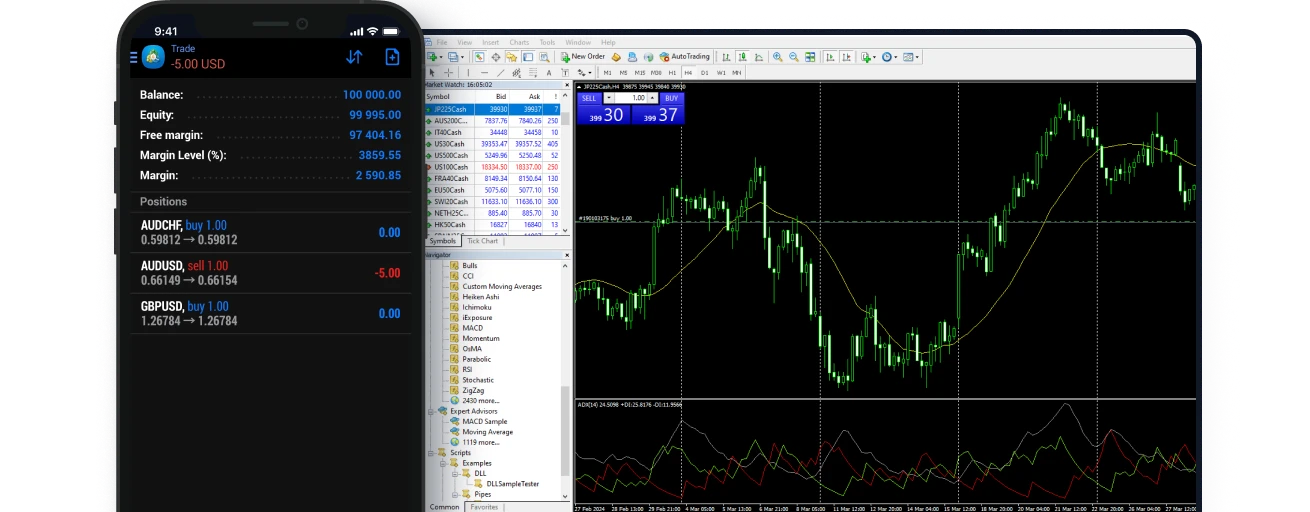
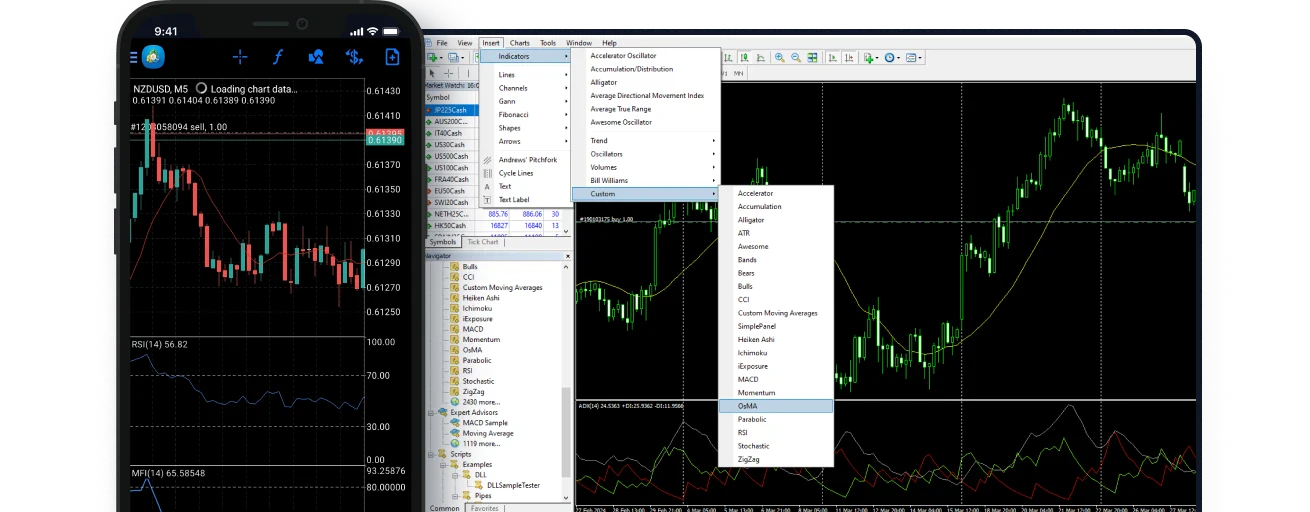
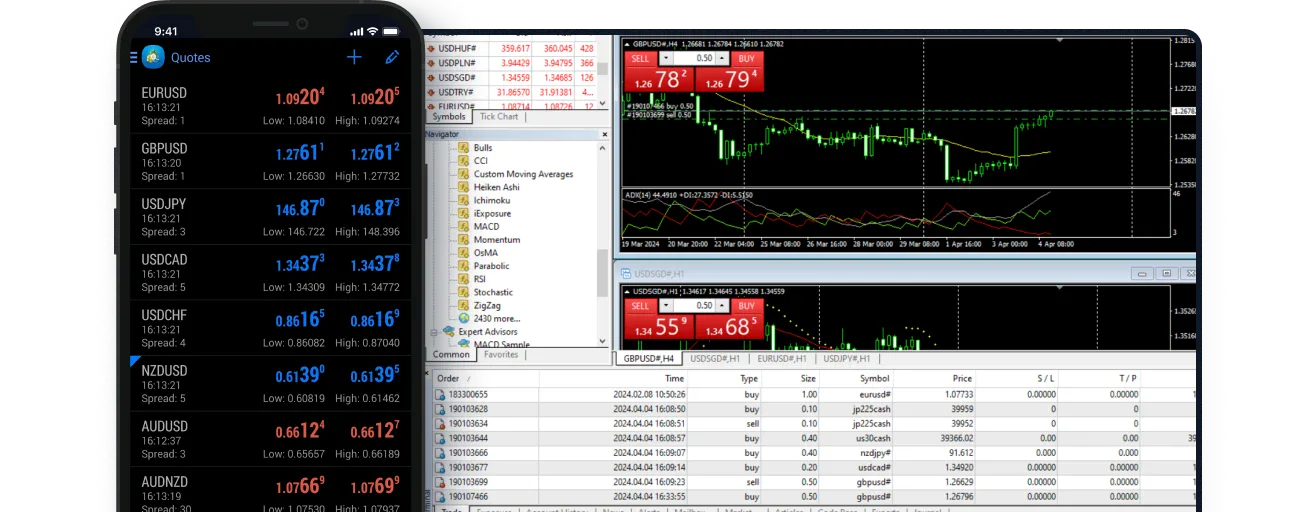
Efficient trading: mobile account and desktop charts Technical tools: indicators and charts More trading opportunities: handling multiple orders

XM MT4 vs MT5 vs XM App

MT4 and MT5 are separate MetaTrader environments, while XM App is XM’s own mobile application. Existing users should match the terminal to their trading account first; new users can then compare charting, automation and mobile requirements.

Compare MT4 MT5 XM App
Primary Use MT4 trading, MQL4 and Expert Advisors MT5 trading, MQL5 and Expert Advisors XM mobile account and service access
Automation MQL4, EAs, MetaEditor and Strategy Tester MQL5, EAs, MetaEditor and Strategy Tester Does not replace the desktop MetaTrader development and testing environment
Devices Windows, Mac, mobile and WebTrader Windows, Mac, mobile and WebTrader iOS and Android
Account Compatibility Use an XM MT4 account and matching server Use an XM MT5 account and matching server Use accounts and services supported by XM App

Choose an XM Trading Terminal by Device

Your device determines how you access XM, while the account platform determines whether you use MT4 or MT5. Desktop terminals suit deeper analysis and automation, WebTrader provides browser access, and mobile apps are convenient for monitoring and order management.

Windows / macOS

Use XM MT4 or MT5 on Windows or macOS for the most complete MetaTrader workspace, including charts, indicators, Expert Advisors, MetaEditor and Strategy Tester. The terminal must match the account platform.

MT4 / MT5 WebTrader

Access the matching XM MetaTrader account in a browser without installing desktop software. WebTrader works well for browser-based trading and account access, while EA development and strategy testing remain desktop-focused.

iOS / Android

Use the relevant MetaTrader mobile app for MT4 or MT5 account access, or XM App for supported XM mobile services. These are separate applications with different account and feature requirements.

Multiple Trading Accounts

An XM Profile can include multiple trading accounts, but each account has its own platform, server and login details. Check whether an account is MT4 or MT5 before opening the terminal.

Before You Download XM MT4 or MT5

Choosing the installer is only one part of the setup. The account platform, trading server, operating system and required features all need to match before you log in.

Check Your XM Account Details

MT4 and MT5 use separate account environments

Check whether the XM trading account was created for MT4 or MT5. Login requires the matching terminal, account ID, trading password and server, so MT4 and MT5 credentials should not be treated as interchangeable.

Choose the Right Access Method

Desktop · Web · Mobile

Desktop, WebTrader and mobile terminals support different workflows. Choose desktop for Expert Advisors, MetaEditor and Strategy Tester, WebTrader for browser access, and mobile for monitoring and order management.

Check Device and Terminal Version

Windows · macOS · Mobile

Windows, macOS and mobile devices use different installation methods and terminal versions. Check the operating system and MT4/MT5 platform before downloading so the software matches the account and device.

How to Download, Install and Log In to XM

Start with the XM account details, then choose the correct terminal for your device. After installation or browser access, log in with the matching server and verify the trading environment before placing orders.

01

Check Your XM Account Details

Confirm whether the trading account is MT4 or MT5 and note the account ID, trading password and server. XM App uses its own supported account and service flow.

02

Download or Open the Right Terminal

Use desktop MT4/MT5 for Expert Advisors, MQL and strategy testing, WebTrader for browser-based access, or the relevant mobile app for monitoring and order management.

03

Log In and Check the Connection

After login, check the server connection, visible instruments, quotes, balance and margin information. If the account does not connect correctly, verify the MT4/MT5 platform, server and credentials before reinstalling the terminal.

FAQ

XM Download, Installation and Login FAQ

These questions cover XM MT4 and MT5 account compatibility, device support, WebTrader, XM App, Expert Advisors and the information required to log in.

01

Should I download XM MT4 or MT5?

If you already have an XM trading account, download the platform that matches it. MT4 uses MQL4 and the MT4 Expert Advisor ecosystem, while MT5 uses MQL5 and a different analytical and automation environment.

02

Can I use the same XM account on desktop, WebTrader and mobile?

A compatible XM trading account can be accessed through desktop, WebTrader and mobile terminals for the same platform. The MT4/MT5 environment and trading server must match the account.

03

Which devices does XM MT5 support?

XM MT5 can be accessed through desktop, WebTrader and compatible mobile environments. Feature coverage varies by device, while Expert Advisor development, MQL5, MetaEditor and strategy testing are primarily desktop workflows.

04

Is XM App the same as MT4 or MT5?

No. XM App is XM’s own mobile application, while MetaTrader 4 and MetaTrader 5 are separate trading platforms. Their account compatibility, login methods and available tools are not identical.

05

Can WebTrader run Expert Advisors?

WebTrader is designed for browser-based account access, charting and order management. Expert Advisors, MetaEditor and Strategy Tester belong to the desktop MetaTrader workflow rather than the browser terminal.

06

What information is needed to log in to XM MetaTrader?

XM MetaTrader login normally requires the trading account ID, trading password and matching server. XM Profile credentials and trading-account credentials serve different purposes, so verify the MT4/MT5 platform and server first if login fails.